1. Getting started
- Install and open Golden Ratio Spiral.
- Follow the app's guided setup. Allow Display over other apps when prompted.
- On devices that require it, allow additional manufacturer-specific pop-up/background permissions.
- Read the in-app Accessibility disclosure and choose whether to enable the camera-detection service.
- Open your phone's original Camera app. The Golden Ratio composition grid and control panel should appear automatically.
- Leave Camera; the overlay should disappear. Reopen Camera to verify that it appears again.
This app displays a visual guide above the Camera preview. It does not replace the Camera app. Android menus and permission names vary by phone model and OS version.
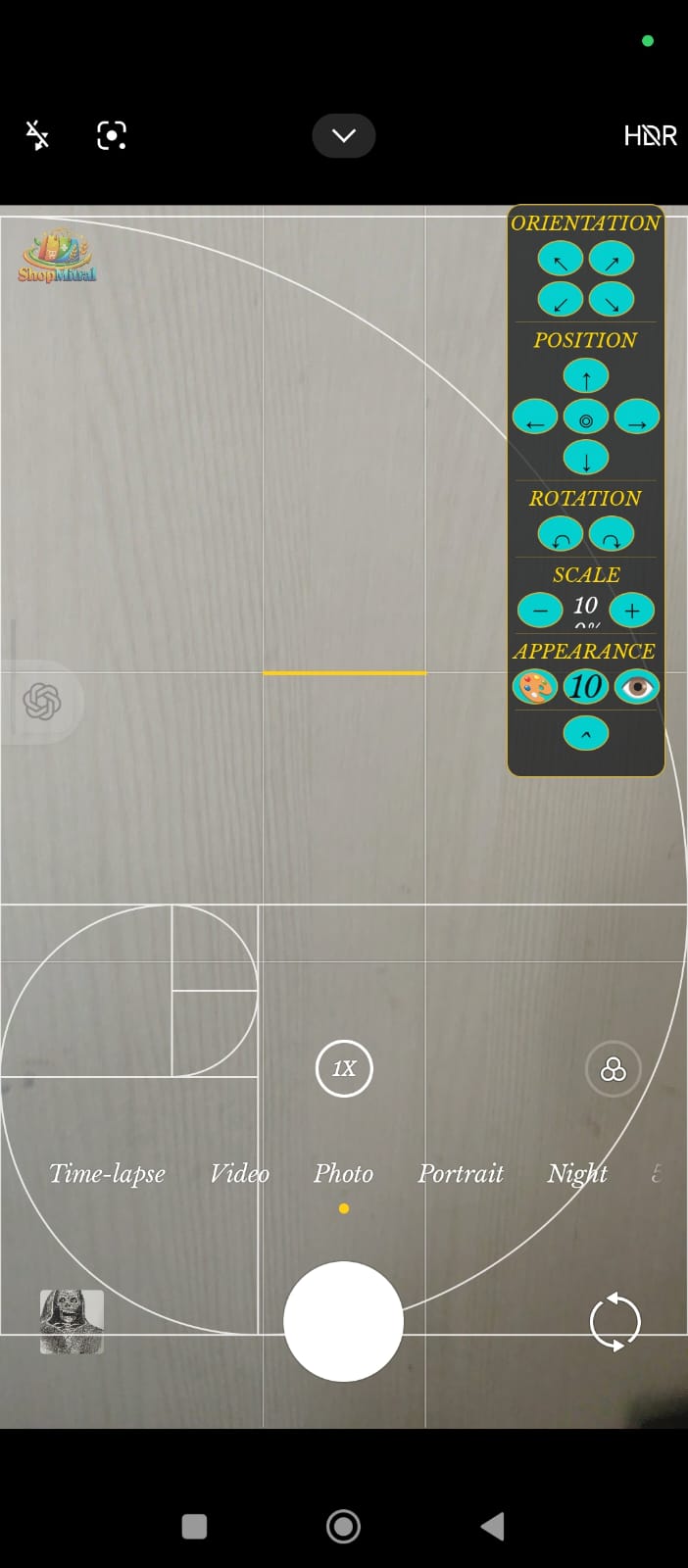
2. Camera overlay controls
- Orientation: Choose the direction of the Fibonacci spiral.
- Position: Move the guide left, right, up, or down; use the center control to restore its position when applicable.
- Rotation: Turn the guide in either direction.
- Scale: Increase or decrease the overlay size.
- Appearance: Adjust color, opacity, or visibility.
- Collapse: Minimize the control panel to keep more of the Camera preview visible.
Composition controls are independent of the Camera's shutter and photography settings. The guide is a screen overlay and is not intended to be part of the saved photograph.
3. Xiaomi / Redmi / POCO: tested settings
The screenshots below document settings on one Xiaomi device. Labels and paths may differ on other MIUI or HyperOS versions.
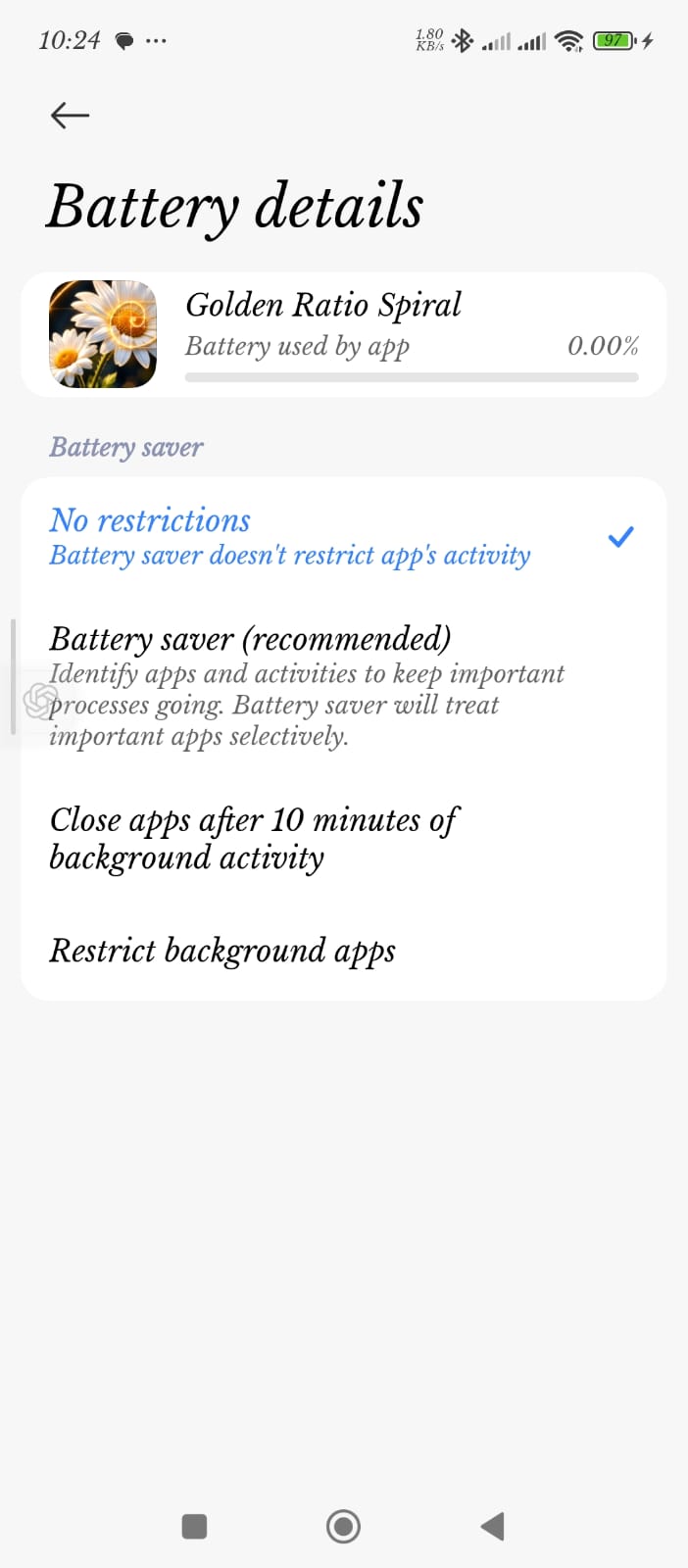
3.1 Battery restrictions
Open Android Settings → Apps → Golden Ratio Spiral → Battery saver (or the equivalent Battery details screen). Select No restrictions if available.
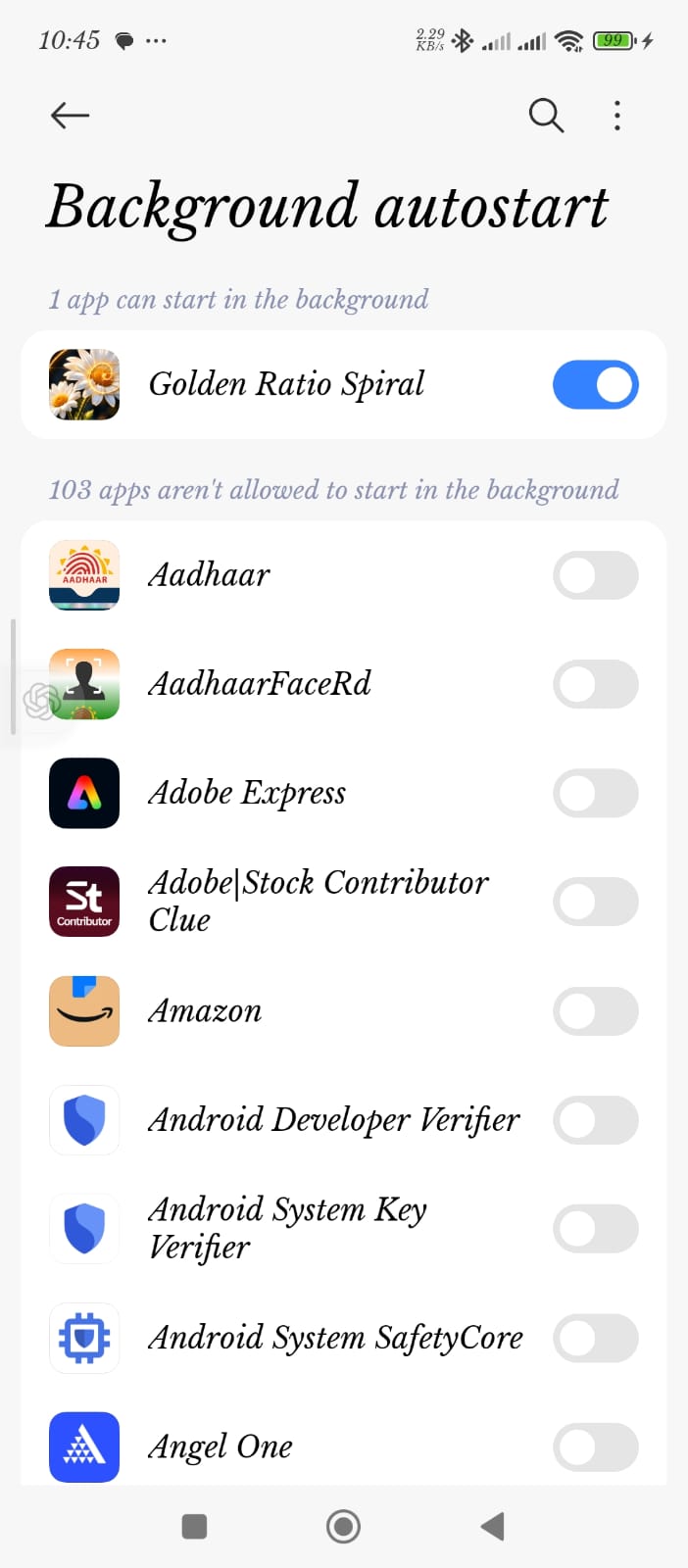
3.2 Background autostart
In Android Settings, search for Background autostart. If Golden Ratio Spiral appears in the list, switch it On.
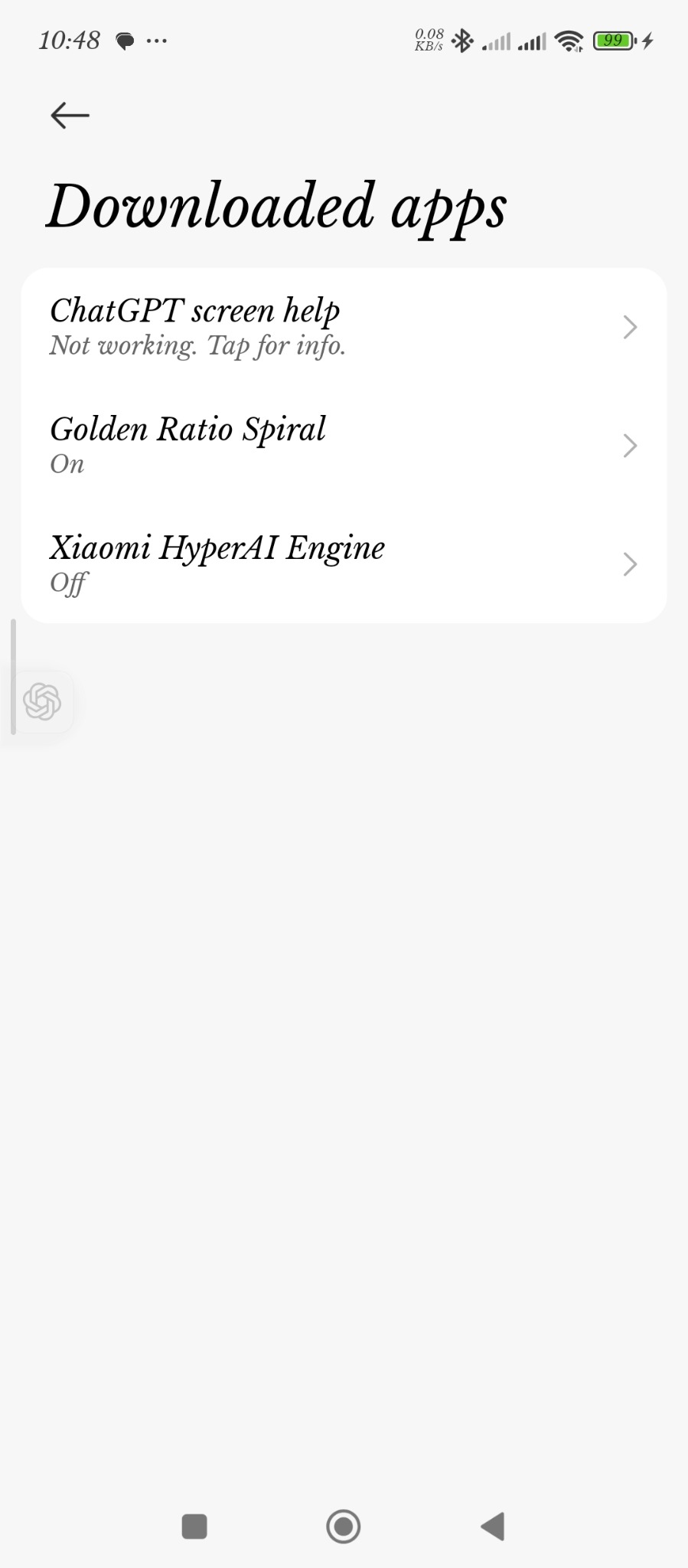
3.3 Accessibility Service
Open Settings → Accessibility → Downloaded apps → Golden Ratio Spiral (the exact route may vary). Enable Use Golden Ratio Spiral after reviewing the app's disclosure.
3.4 Other permissions
If the overlay does not appear, review Xiaomi's Other permissions for Golden Ratio Spiral and allow the relevant pop-up/overlay permission requested during setup. Some devices require permission to show pop-up windows while running in the background.
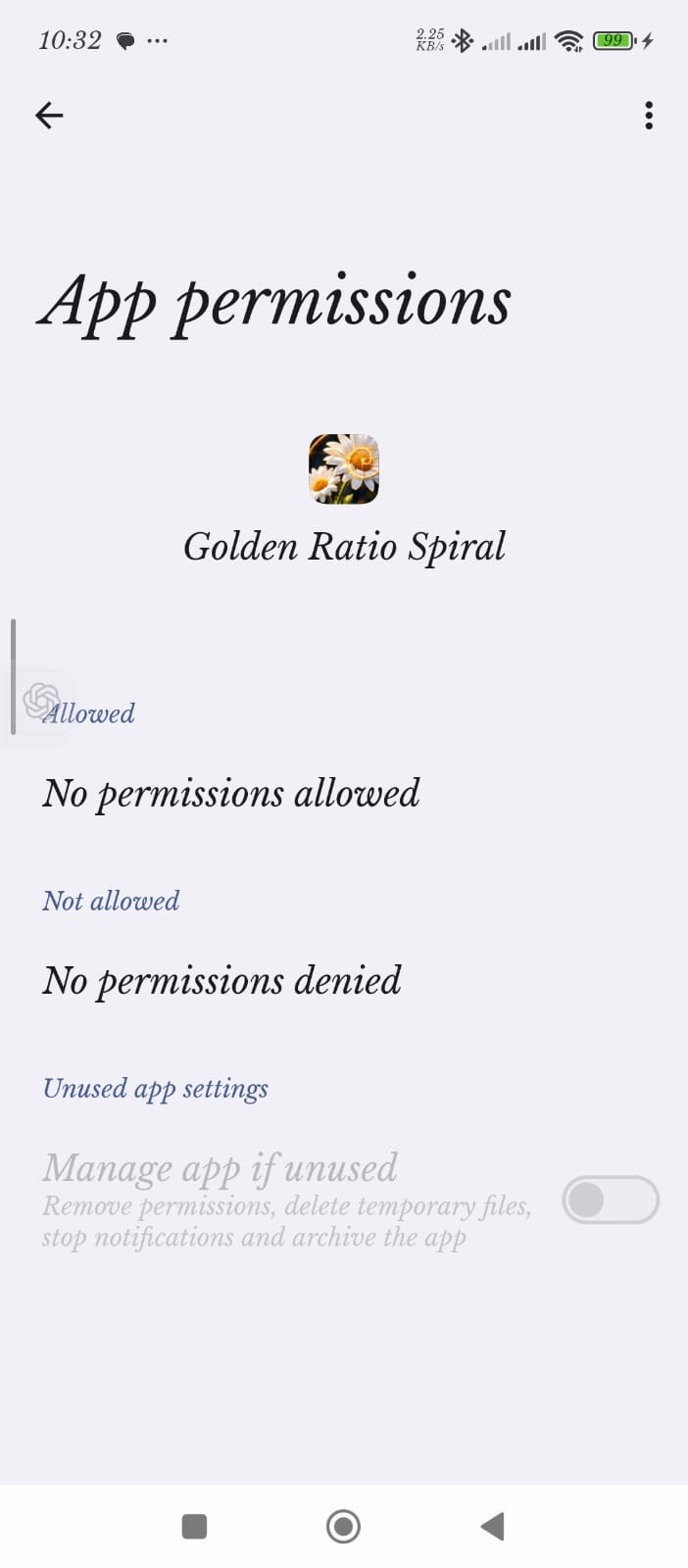
A screen saying “No permissions allowed” under ordinary App permissions does not necessarily indicate a problem. Overlay and Accessibility permissions are managed separately on Android.
4. Fix “Not working” or a missing overlay
- Close the Camera app.
- Open Settings → Accessibility → Downloaded apps and check Golden Ratio Spiral.
- If the service says Not working, open its details. Turn Use Golden Ratio Spiral off, then back on if Android allows. Confirm any Android prompts.
- Check that Display over other apps remains enabled. On Xiaomi, also review the additional background pop-up permission.
- Set Battery saver to No restrictions and enable Background autostart if those options are available.
- Reopen the original Camera app. Verify the grid and control panel appear, then leave and reopen Camera once more.
Verified recovery: On the tested Xiaomi phone, the Accessibility status returned to “On”, the overlay appeared in Camera, and it continued working after Camera was closed and reopened.
If Android repeatedly reports “Not working”, the Accessibility Service may be stopping or crashing. These settings can improve reliability but do not guarantee that Android will never stop it. A persistent failure may require an app update or technical diagnosis.
5. Other Android manufacturers
The main setup principle is similar across supported Android devices: allow the app to draw over other apps, enable its optional camera-detection Accessibility Service with informed consent, and review manufacturer-specific background restrictions where needed.
Samsung, Google Pixel, Motorola, OnePlus, OPPO, vivo, realme and other brands: use Settings search for “Display over other apps”, “Accessibility”, “Battery”, or “Autostart”. Do not expect the Xiaomi screenshots or menu labels to match your phone exactly.
Manufacturer-specific instructions outside the Xiaomi test device are general guidance and have not yet been independently verified for every model. Compatibility can vary by Camera app and Android version.
6. Support and privacy
When requesting help, include your phone brand and model, Android version, Camera app name, and a screenshot of any error. Do not send passwords, identity documents, or sensitive account details.
Support: supportshopmitral@gmail.com
Privacy policy: Golden Ratio Spiral Privacy Policy
Website: shopmitral.com